
Categories
Money money money...
Could we help you? Please click the banners. We are young and desperately need the money
Created: February 9th 2021
Last updated: April 8th 2021
Categories: IT Support, PhpStorm, Software & Services
Author: Tim Fürer
Last updated: April 8th 2021
Categories: IT Support, PhpStorm, Software & Services
Author: Tim Fürer
PhpStorm: Quick FTP configuration guide
In this post, I'll quickly guide you on how to connect to your FTP-Server with PhpStorm.
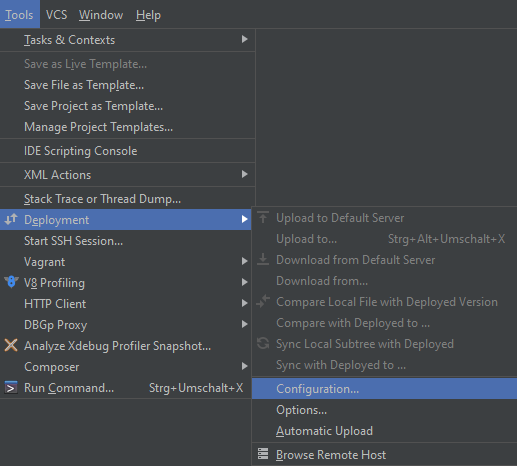
Head to Tools > Deployment > Configuration...
Click the plus icon in the upper left corner and select the kind of web server.
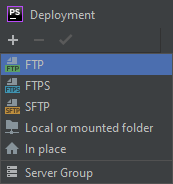
Give your configuration a name and click "OK".

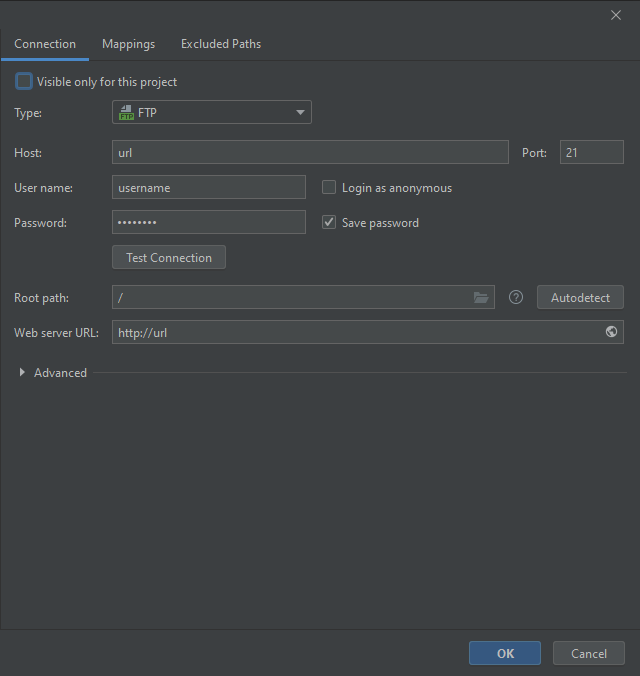
Enter your FTP-information. Press "Test Connection" to check if everything works. If yes, proceed and click "OK".
Click on "Remote Host" which is located on the right side (default) of your screen and your FTP-Server should show up.

And that's it.
Related Articles
November 13th 2025
Create a Apple macOS Quick Action for Instant FTP Image Uploads
June 16th 2025
CSS: Frosted Glass Effect / How to Blur behind Element
June 5th 2025
jQuery Nice Select: Listen to Change Event
May 27th 2025
Laravel: Debug with PHP Debug Bar
May 23rd 2025
Laravel Sail: Slow on Windows
May 9th 2025
GitHub: How to Compare Repository by Commits
March 21st 2025
VSCode: Minimap / Code Outline Missing
March 14th 2025
HTML: Embed PDF into Website
March 3rd 2025
Laravel: Migrate from Laravel UI Authentication to Fortify
February 27th 2025
Linux Mint: Window Disappears when Middle-Clicking Title Bar
February 21st 2025
Laravel: How to Fetch Posts from WordPress
February 13th 2025
Laravel: How to Schedule Tasks / Set Up Cron Jobs
February 4th 2025
Linux: Generate and Verify SHA-256 File Hash Checksums
January 31st 2025
Laravel: How to Bind "sail" as an Alias to "./vendor/bin/sail"
January 24th 2025
WordPress: How to Create Custom Admin Page
January 17th 2025
CSS: How to Center a DIV
January 9th 2025
Linux: How to Mount SFTP File System
January 2nd 2025
Wie man Screenshots von ShareX auf einen FTP Server überträgt.
December 20th 2024
Target other elements using :has()
December 19th 2024
JavaScript: How to Trigger Download through Code
December 11th 2024
CSS: Change Opacity of Colour with color()
November 12th 2024
CSS: Align Children inside Grid Items with Subgrid
November 5th 2024
Laravel: How to Test SMTP Credentials
October 31st 2024
HTML: Formatting Guide
October 24th 2024
JavaScript: How to Only Allow Unique Values in Array
September 27th 2024
HTML: How to Prevent User Interaction with Inert and Alternatives
September 20th 2024
JavaScript: How to use Map; The Super-Powered Object/Dictionary
September 18th 2024
Creating Custom Blade Directives in Laravel
September 11th 2024
Control Browser Caching in Laravel
September 5th 2024
JavaScript: How to Convert Iterables to Arrays
March 15th 2024
PHP: How to automatically generate IcoMoon HTML
February 28th 2024
WordPress: How to generate HTML class attribute with array of strings
February 16th 2024
WordPress: How to send alert on post create, delete, or permalink change
February 5th 2024
WordPress: How to Preload Fonts
January 19th 2024
WordPress: How to disable admin theme- and plugin editors
January 10th 2024
WordPress: How to hide admin pages for unprivileged users
January 5th 2024
PHP: How to serve file as response
December 18th 2023
WordPress: How to redirect to first child page
December 6th 2023
CSS: How to add text and custom elements with ::before and ::after
November 29th 2023
WordPress: How to generate breadcrumbs
November 21st 2023
PHP: How to find out client browser language
July 14th 2023
PHP: Funktion zum Vergleich von Verzeichnissen
July 13th 2023
PHP: Directory Comparison Function
June 20th 2023
JavaScript: Why use let/const over var
February 24th 2023
WordPress: Streamlined Database Export Plugin
July 6th 2022
MySQL Workbench: Re-sizing a Diagram
November 18th 2021
JavaScript Basics: Second Lesson
September 24th 2021
JavaScript Basics: First Lesson
August 18th 2021
How to install Laragon and create basic index.php
April 23rd 2021
WordPress: Change Post Type via Database, Quick and Easy
April 13th 2021
RegEx: Basic Introduction
April 12th 2021
CSS Basics: Selectors
April 8th 2021
CSS Basics: Short introduction
April 7th 2021
HTML Basics: Different ways to include JavaScript and CSS
March 31st 2021
HTML Basics: The HTML5 Scaffold
March 30th 2021
HTML Basics: Elements
March 23rd 2021
WordPress: Enqueuing Scripts and Styles
March 22nd 2021
WordPress: Get a Post
March 18th 2021
JavaScript and jQuery: Smooth Scroll to element on page
March 17th 2021
CSS and Bootstrap: Alternating Layout with Images to normal in Mobile (solved with display:grid)
March 10th 2021
WordPress: Create a basic Template
March 9th 2021
WordPress: Create a basic Theme
March 2nd 2021
WordPress: Make a Custom Taxonomy
February 26th 2021
WordPress: Add your own Shortcode
February 25th 2021
WordPress: jQuery is not working
February 19th 2021
MySQL with PhpMyAdmin: Create Databases and Tables
February 18th 2021
WordPress: Declare a Custom Post Type
February 16th 2021
WordPress and PhpMyAdmin: Migrate a Database
February 12th 2021
WordPress Plugin: Advanced Custom Fields short introduction
February 5th 2021
WordPress: Installation with XAMPP
June 18th 2015
WordPress Multisite Guide
This website was created and developed by LEXO - for more information see LEXO web development